Showing posts with label HDD. Show all posts

Tuesday, 15 January 2019

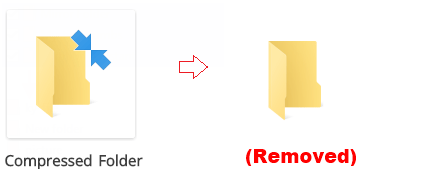
Windows folder or file with double blue arrows at the top right - what it means


Actually its my 1st time seeing it. You would think that's a surprise for someone like me, but its true. The new era here focus mostly on SSD hdd powered notebooks. Mostly comes with an extended SATA hdd to support storage files. SSD is suppose to make your computing Operating System and software run faster. However, some laptop/notebook only have SSD slots. This is where I start seeing these strange icons on some files and folders.

If you haven't had the clue to what I'm saying, its these "File icon with 2 blue arrows on the top right corner". Below is a link to what these signifies. This happens especially when you only have one hdd and you are running on Windows 10. The higher capacity of SSD, the more expensive they are. Most of the top branded laptops uses 128 or 256GB SSD. With Windows 10 installed, then other software such as Office, and large software will then to make your free space smaller. And when you have lots of files and folders to save in your SSD, the less capacity it holds. Hence, comes this where you can compress your files and folders but still be able to use them.

So for those that come across these icon, don't need to panic. Below is just one of many website links that you can find when you do a search. Some even have steps to remove the icon arrows. But for now, its just an information that I would like to share.

https://www.howtogeek.com/307509/what-does-a-windows-folder-icon-with-double-blue-arrows-mean/


Friday, 10 November 2017

6 Worst Reasons of Hard Disk Failure

Recently took back a customer's desktop pc. It couldn't turn on. So, first thing is to test if the harddisk is detecting. I use a boot up disk and check the status. Even before it reaches the boot disk, A message appeared, Harddisk Falure! 

Oh dear. Next step is to yank out the harddisk and attach it separately on another working computer, and in hope to still be able to read it and try to retrieve and back up data from it. It was not promising as initial connection, already not reading the harddisk. A trick I use, is to connect it with a working harddisk and immediately connect back with the "about to failed" harddisk. It works sometimes, in this case, it did work and I can see the content of the harddisk. But unfortunately, the data still cannot be copied out. It only displays the folder or the file but the data cannot be copied or transferred out. Its a severed harddisk failure.

All data lost. I did come across some companies with specialized tools to be able to recover back the data but unfortunately, the price to do so is extremely expensive. And also, not sure even if the data is recovered, whether it can still be used, is no guarantee.

So, what I want to share is some info I picked off from the internet. Some may still be recoverable but some is forever gone. What and how the reasons to harddisk failure come about and how we can over come the problem.

https://www.stellarinfo.com/blog/6-worst-reasons-of-hard-disk-failure/

Monday, 30 October 2017

PROCESS1_INITIALIZATION_FAILED

PROCESS1_INITIALIZATION_FAILED

Recently a customer's pc displaying this error. Well, you can't actually see the error message properly. Its because its a blue screen of death. And what it does is, it keeps restarting the pc and displaying the blue screen error message. I have to record the action and pause to see the error message. 

This type of error can be a severe one. It generally means either a hardware fault or a fault with Windows boot files. Fixing it can be as simple as checking the cables on your hard drive or as tiresome as performing a system restore.

If you have made hardware changes:

1. Check HDD or SSD cables are tight and secure.
2. Do the same for power cables just in case.
3. Check your BIOS has the correct settings for the boot drive. ATA/IDE for HDD and AHCI for SSD.
4. Remove any hardware recently added or update the drivers for that device.

If you made software changes:

1. Uninstall the software and retest. Check version and compatibility with the vendor if fault goes away.
(NOTE: How are you going to get into Windows when you computer keeps restarting, right?)
- Upon the computer restarts by itself, press on the keyboard F8 continuously until a list of options displayed. Look for Safe Mode and hit the enter key. If any chance, you are unable to get into Safe Mode, you will need to use a bootable Windows CD to help you do that.

This simple steps its just the surface tech work. Even if you have done all that, there are other possible problems like how does it happen? Could be a hardware failure, your harddisk is dying. Or the system files corrupted due to a virus or a software not compatible with Windows.

An easier way is just send the computer back to the vendor and have it solved. I'm here if you need my services. At least I know what I'm talking about. Right?