Thursday, 22 October 2020

How to Remove Edge Browser Tabs From Alt+Tab on Windows 10

Microsoft Windows 10 October 2020 Update is out today. The update isn’t a major one, but it does see some interesting tweaks. These include changes to the Start menu and the way the Alt Tab function works.

The Start Menu, Microsoft is doing away with the solid background behind app icons. This gives a cleaner look to the start menu, it’s overall still the same Start Menu, just that it looks a little cleaner.

As for the Alt Tab function, this is something that would only affect those who use Microsoft Edge. Just before this update, Alt Tab not only lets you switch between your open windows, but also any Edge browser tabs you have. With the update, you can turn this off so that you get the classic Alt Tab experience.

And finally, the Windows 10 October 2020 update, you’ll be able to switch to higher refresh rates from the settings menu. Before this, you’ll have to go to the app that manages your graphics cards.

While the Windows 10 October 2020 update rolls out today, you may not be able to get it immediately. Microsoft is throttling availability over the coming weeks so that the update experience is a smooth one for everyone. (courtesy: Link)

If you like to remove the Edge Browser Tabs on Windows 10, here is the link to the steps. 

  1. In Settings, navigate to System > Multitasking.
  2. In Multitasking settings, scroll down until you see “Pressing Alt+Tab shows” and click the drop-down menu beneath it.
  3. In the menu that appears, select “Open Windows Only.”
  4. After that, close Settings. The next time you use Alt+Tab, you will no longer see Edge tabs as separate entries in the task switcher. Instead, you’ll only see Edge windows listed.
Below is the link to show you with photos/screenshots as guide. 

Wednesday, 21 October 2020

:: NOTICE: Conditional Movement Control Order effective 22nd October 2020 until tentatively 28th October 2020.

Here is another COVID19 update. 

As of today, 22nd October 2020, with immediate effect, CMCO or Conditional Movement Control Order has been implemented around my area Kuala Lumpur, Petaling, Klang,  with some other states as well. Unfortunately, all my service areas are covered in the CMCO restriction zone. All travelling on-site services will be paused until CMCO has been lifted up. 


Wednesday, 7 October 2020

:: NOTICE: Recovery Movement Control Order as of 1st September 2020 until 31st December 2020

Sorry for the late post. As of 1st September 2020, the Recovery Movement Control Order has been extended again until end of this year 31st December 2020. As to previous post, no changes to my services. 

At this time, JEZ Consult can resume business such as onsite visit but again with conditions as well. The onsite place needs to have a temperature reading and the people in the office are required to wear facial mask. Social distancing is the new normal. So, please apologize if when we visit, we do not extend our hands to shake if you gestured so. Certain place also are still restricted depended on the Health Ministry chart zones. Currently any area that are placed as Extended Movement Control Order or EMCO and is deemed as Orange or Red zones, we do not provide onsite services. These restrictions is also on JEZ Consult not taking any Desktop or Laptop back to check for errors and repairs.


For those Desktops and Laptops that needs fixing, we will try to fix it on the spot as we currently still have the restrictions to bring back to office to check and repair. However, dependent on the complexity of the problem, we will consider to take back the unit for repair as well (For areas not under the Red zones). We will provide with the best solution possible and time taken to repair depending on the problem. 

For customers' which computers problems are non-related to connectivity of on-site network connection issues, are advised to send back to their respective Head office. This is because, we had previous issue of calling the engineer to onsite places which are still not mapped on Google Maps (especially construction sites still under development) with a permanent address location. Additional charges will be added if needed us to deliver their computers back to their head office. 

Also, currently not doing services to customer's at home or at their house. As there are no temperature checking and MySejahtera scan to houses. So, its better not venture to uncharted territories. 

UPDATE! Starting 9th October 2020, one district in Selangor has been placed under Conditional Movement Control Order. The area is Klang. I have a regular supplier for laptop and notebook repairs. So, for the mean time, no laptop repairs (major problems that involves motherboard, fan parts and laptop components) are possible. But for minor repairs such as hard disk, RAM, are still possible.  

Wednesday, 22 July 2020

Windows XP is still alive and how to keep using it

We are now in the year 2020. We all know that Microsoft no longer provides official support for Windows XP since 8th April 2014. Some of us are unfortunate and still have yet to make the big leap to the new systems. Mainly Microsoft Windows 10. Our PCs are still running smoothly with older versions especially Windows XP, Vista or the recent out of service Windows 7. Of course, there is some glitches here and there but its just for the sole purpose of using it for either writing, listening to music and doing everything offline or even if its online, its just to watch YouTube.

According to market share studies, there are a lot of users who are still using Windows XP on their laptops or desktops. In this post, I will try to point out some helpful feature in helping to keep your Windows XP running.

  • Install an Anti Virus

Even though Microsoft no longer releases Windows XP security patches, you can still protect your computer. You can anytime download and install free or paid antivirus programs.

The free software is ok, but if you really want to secure your Windows XP system you should choose a paid version of antivirus. The best programs that you can use is Avast. I have tried downloading others such as AVG, Comodo, Clam Antivirus, McAfee and run on them even in search by other bloggers and websites saying, they are be used on Windows XP, the software installation says it doesn't support older operating system anymore. I may have chosen the wrong link to download but hope that's just my mistake.

In case you are asking about what happened to Microsoft Security Essentials, you should know that the software received the last updated in June 2015.

Anyway, even though Security Essential represents the official Microsoft security tool, we recommend using a better antivirus program.


  • Stop using Internet Explorer

On your Windows XP you should use either Google Chrome or Mozilla Firefox. I would suggest Mozilla Firefox as Google Chrome also no longer supports windows xp. However, you can choose to install a lower version of Google Chrome. But I would not advice on it as some features will not be able to work. All the major tech and security companies out there urge you to stop using Internet Explorer and for a good reason.

Why? Well mainly because Windows XP will no longer receive Internet Explorer official support which means that your web browser might not offer the security support you need.

So, the best way to avoid unpleasant situations will be in using Google Chrome or Mozilla Firefox, which will bring patches up to date. There are a lot other browsers as well, just do a search and you can find them. Or for the better, to protect your PC from malicious attacks on the internet...

  • Use VPN

You may wonder what VPN is all about. A virtual private network (VPN) is a private data network that abstracts your Internet connection so as to maintain privacy through cryptographic security protocols. In addition, a VPN hides your IP address and makes you anonymous online. Such a service can be installed on a number of operating systems and devices to secure all network traffic.

Also, if you are already installed with the Avast free or paid yearly, Avast also has the VPN feature for an additional subscription. I have not tested on other VPN services, only Avast and corporate VPN services such as Sophos Cyberoam. I have however, tested on some free VPN but they can be rather annoying because it is filled with advertisements and also you need to verify captchas everytime you want to use the VPN.

Conclusion, if you still want to use older versions of Windows XP, Vista or Windows 7 (End of Extended Support is on January 14, 2020) and even Windows 8/8.1 (End of Extended Support is on January 10, 2023), Update to its latest updates, have an antivirus and internet browser that supports the system and also for additional internet surfing security, use VPN. But do take note, you can't install some of the latest software that isn't compatible with the older versions anymore.


Tuesday, 23 June 2020

QR-Code is the Old-New Digital Business Card.

 QR-Code is the Old-New Digital Business Card.


Everyone knows that! What an old news! Now more than ever! Its more useful than the conventional physical Business cards that we hand out. Especially now, with the world wide pandemic crisis on our world map at hand. We now use the internet more as it is so important to our daily life. Work or leisure. We communicate with our smartphones, pay bills and transactions by scanning the payment QR-code instead of money notes from our wallet. You get the picture, I don't need to explain in detail.

Though we use QR-code for payment, little did we use it as our business card. With old conventional business cards, if we changed position, change address, or phone number or new information needed to be added, we have to publish new sets of name cards. And there goes the little plant of trees for a set of 100 name cards.

Now with some new regulations of social distancing, washing hands regularly, and not allowed to be in a crowded places, our name cards also needs to change. What better way is to use QR-Codes as our business card info. You can create one with a QR-code generator. You can search online. Well, I have a link that helps to generate for free and its for commercial use as well. https://www.qrcode-monkey.com/

Monday, 8 June 2020

:: NOTICE: Recovery Movement Control Order as of 10 June to 31 August 2020

Malaysia’s Movement Control Order (MCO) has been extended until 31st August 2020 and it is now entering the recovery phase which is now called the Recovery Movement Control Order (RMCO). Beginning 10th June, the government is lifting several restrictions as the country moves into a recovery phase, as part of its exit strategy for the MCO. This includes lifting restrictions on interstate travel and more economic sectors will be allowed to resume operations.

At this time, JEZ Consult can resume business such as onsite visit but again with conditions as well. The onsite place needs to have a temperature reading and the people in the office are required to wear facial mask. Social distancing is the new normal. So, please apologize if when we visit, we do not extend our hands to shake if you gestured so. Certain place also are still restricted depended on the Health Ministry chart zones. Currently any area that are placed as Extended Movement Control Order or EMCO and is deemed as Orange or Red zones, we do not provide onsite services. These restrictions is also on JEZ Consult not taking any Desktop or Laptop back to check for errors and repairs.

For those Desktops and Laptops that needs fixing, we will try to fix it on the spot as we currently still have the restrictions to bring back to office to check and repair. However, dependent on the complexity of the problem, we will consider to take back the unit for repair as well (For areas not under the Red zones). We will provide with the best solution possible and time taken to repair depending on the problem. 

For customers' which computers problems are non-related to connectivity of on-site network connection issues, are advised to send back to their respective Head office. This is because, we had previous issue of calling the engineer to onsite places which are still not mapped on Google Maps (especially construction sites still under development) with a permanent address location. Additional charges will be added if needed us to deliver their computers back to their head office. 

Monday, 1 June 2020

Microphone not working on Laptops


Microphone not working on Laptops

With most of the people nowadays working from home during this Conditional Movement Control Order, the need to communicate with customers and co-workers is important. recently have a customer encounter problems getting the microphone on the their laptops to work.

Particularly on Microsoft Teams for this case. I'm not sure if other apps and software has this similar issue. But after searching for solutions on Google search, and also updating to the latest drivers, still could not get it to work. So, testing and troubleshooting it, I noticed that most of the laptop microphone and speaker shares the same functions. And sometimes the laptops have additional audio enhancement installed as well. Just need to disable the sound feature that is currently sharing with the microphone.

To perform this task, go to the Windows 10 Settings, System, Sound and Manage Sound Devices.


In this Manage Sound Devices, you will be able to see Output Devices and Input Devices. Output Devices will have speakers while Input Devices have the microphone and stereo mix.

Disable the stereo mix and the microphone should be working fine now.

Of course, if you are a music lover, don't forget to enable back the Stereo Mix for better sound quality when listening to your favorite radio station online or from your laptop playlist. However, when you need to use the microphone to communicate with work, then you need to disable the Stereo Mix.

That's it.

Wednesday, 13 May 2020

:: NOTICE: Conditional Movement Control Order as of 12 May to 9 June 2020

Malaysia Government has extended its Movement Control Order with Conditions some businesses can be open provided they follow the Standard Operating Procedure. This has started already since May 4, 2020. But the official kick off date is from May 12 to 9 June 2020. Its to be called as Conditional Movement Control Order or CMCO for short.

At this time, JEZ Consult can resume business such as onsite visit but again with conditions as well. The onsite place needs to have a temperature reading and the people in the office are required to wear facial mask. Social distancing is a must. So, please apologize if when we visit, we do not extend our hands to shake if you gestured so. Certain place also are still restricted depended on the Health Ministry chart zones. Currently any area that are placed as Extended Movement Control Order or EMCO and is deemed as Orange or Red zones, we do not provide onsite services. These restrictions is also on JEZ Consult not taking any Desktop or Laptop back to check for errors and repairs.

For those Desktops and Laptops that needs fixing, we will try to fix it on the spot as we currently have the restrictions to bring back to office to check and repair. This of course, we will see the conditions of the repair. It will take a longer time than the usual 2 to 3 days as we are fixing onsite. We will provide with the best solution possible and time taken to repair depending on the problem.

Please apologize for any inconvenience caused.

Monday, 13 April 2020

:: NOTICE: Movement Control Order as of 18th MARCH 2020

Following the recent events around the world regarding the outbreak of corona virus, Our Government's Prime Minister announced an immediate Movement Control Order with immediate effect on the 18th March 2020. Initially the MCO for short was until 28th March. But because of the severity of the cases of infection has increased tremendously, the MCO has extended to 28th April 2020.

During this time of MCO, companies are restricted to go to offices to work. Hence, we are all working from home. And have been forbidden to be out of our houses. We are instructed with only one person in the car and only one person per household to go out for groceries. We are not allowed to travel between states and we are also not allowed to travel more than 10KM within our premises. With that, our on-site services have been halted and we can only provide services via online.

With this restriction, we have the right to refuse business that could jeopardize our health due to the severity of the infection of corona virus (COVID19). Please do hope you understand our situation and if we have inconveniently been rude or refused to help a particular problem, we are solely making the decisions due to the nature of the infection of this corona virus. We apologize for any inconveniences especially denying of services which include picking up hardware laptop or desktop CPU.

Our services extension during this MCO includes hosting services, online software troubleshooting (this involves a currently working computer with internet access. This is usually done via remote access using either Teamviewer or AnyDesk. What we do is, we remote access to try to troubleshoot examples: for existing customers are renewal license for antivirus, third party email software configuration, problems installing software, to name a few. ) Renewal of hosting payments are all done via online payment. We are JomPAY biller since 2018.

During this time of Working from Home #workfromhome, we strongly advise our customer to secure their computer with original software especially antivirus and internet security software. Purchase a legitimate VPN software whenever performing online payment or online transaction for your bills. As more and more people are working form home, internet security is of utmost importance. We have received lots of customer's feedback regarding email Spamming and even recent's news on a test app that supposedly help in financing, but actually is a syndicate that robs your money.

Wednesday, 4 December 2019

Expanding/Swollen Internal Laptop Batteries

First of all, we should ask the 1st question. Why internal battery laptop gets swollen in the 1st place. What causes a swollen battery? ... The most common cause is an overcharge of the battery, which causes a chemical reaction between the electrodes and the electrolyte, resulting in the release of heat and gases that expand inside the battery, causing the casing to swell or even to split open. 


Nowadays, all of the internal battery of a laptop is hidden inside the back covers. Not as the old style where you can detach the battery and use the laptop without the internal battery with just the charger plugged in. 

In any case, when you have a swollen battery, take it out immediately. Even if you do not have the replacement battery. You can still use the laptop without the internal battery. But of course, it won't be a portable unit. You have to have the charged battery plugged in to use it. This is however, only a temporary solution until you get a new replacement battery 

HOW TO AVOID A SWOLLEN BATTERY

There are a number of things you can do to minimize the risk of a battery failure. You can’t completely eliminate the risk, simply because there is always the possibility of a factory defect, but owner mistreatment of the battery is by far the most common cause of a swollen battery. In addition to preventing battery swelling, these suggestions are also good for optimizing your battery life.


Always use the appropriate power charger. Use only quality chargers from reputable manufacturers, not third-party chargers built by a no-name factory. If you don’t have the original charger that came with a battery, then get a charger with the exact same power output as the original charger. Just because the charging plug fits does NOT mean that a charger is appropriate for your specific battery configuration. Always check the laptop label at the back, it will display the voltage or AMP of the battery power it needs to be charged. Match it with the charger that you are getting. And lastly, make sure the plug fits. 


Don’t leave your device plugged in all the time. This is particularly an issue for laptop users who primarily use their laptop at home. The device sits plugged in to the wall all the time, and the battery isn’t given the opportunity to exercise its capacity. You can always turn on the power when your internal battery reaches its lowest alert at 10 to 20% of battery life. 


Keep your battery stored in a cool, dry environment. Occasional use in the sun is fine, but don’t store your laptop in a hot car, or humid environment.


Replace your battery if it becomes exhausted or damaged. Batteries are consumable products; they’re meant to slowly degrade in performance over time. So if your battery is no longer holding a charge, or if it becomes damaged due to a drop or impact, make sure to replace it, before a catastrophic failure can occur.


HOW TO DEAL WITH A SWOLLEN BATTERY

If you suspect that your device has a swollen battery, the first step is to exercise caution. Puncturing a battery in any state is incredibly dangerous, but swollen batteries are especially vulnerable to compromise as their casing is already under stress from the built up gasses within. In short, handle any device with a suspected swollen battery with care. This happened to one of my customer. The battery was so swollen that it cracked the back cover case. So, when I replaced the swollen battery with a new one, the cracked cover could not close because the case was already bend and left the cover with a gap. 


As for disposing swollen batteries, preferably, do not just throw into the trash bin. Unexpected reaction might cause the swollen batteries to explode or leak radiation fluid which can cause sickness or spread hazardous reaction to skin and health. Google search online for companies that accept old computer parts disposal. 


Thursday, 10 October 2019

Windows 10 version 1903 versus 1809 and 1803

The first Question before reading the rest of the paragraph, is "Are Windows 10 updates really necessary?"
To all those who have asked us questions like are Windows 10 updates safe, are Windows 10 updates essential, the short answer is YES they are crucial, and most of the time they are safe. These updates not only fix bugs but also bring new features, and sure your computer is secure.

This link here shows "What's new in Windows 10 version 1903 - https://docs.microsoft.com/en-us/windows/whats-new/whats-new-windows-10-version-1903

Although it says its an option for Windows 10 version 1809 and 1803 to update to 1903, There are the earlier version of 1703 as well. What I can say is that, those with the initial version of 1703 and 1803 should really update their version of Windows 10. Here is a pictograph for your understanding. It is important to run Windows update as it fixes bugs and covers potholes that viruses usually targets those places to attack.

Thursday, 22 August 2019

Network Printer Going OFFLINE

Recently some network printers especially seems to go offline automatically. Of course, this can be rectified just by doing a "troubleshoot" and the OS will just reset the print spooler and your printer will be back online again.

Here are some methods that can help your Network printer to come back online when it automatically goes offline. 

Method 1:
  1. Check to make sure the printer is turned on and connected to the same Wi-Fi network as your PC. Your printer's built-in menu should show which network it's connected to, or check your printer's manual for more info. 
  2. Verify that your printer is not in Use Printer Offline mode. Select Start  > Settings  > Devices > Printers & scanners. Then select your printer > Open queue. Under Printer, make sure Use Printer Offline is not selected.

 
Method 2:

  1. Unplug wait for 30 seconds to a minute and restart your printer. '
  2. Check cables or wireless connection
  3. Uninstall and reinstall your printer
  4. Install the latest driver for your printer
  5. Run the printing troubleshooter
  6. Clear and reset the print spooler by going to the taskbar, select services and restart the print spooler. 
Method 3:
  1. Untick your SNMP Status Enabled. 
  2. Go to your Printers and Devices under the Control Panel
  3. Select the printer that often goes OFFLINE
  4. Right Click and select Printer Properties
  5. Click on the Printer and select Configure Port
  6. Untick the box that says SNMP Status Enabled.  

Tuesday, 9 July 2019

Pirated Software

Lots of these have been going on for a while already. I think I need to emphasize on this as a user and also as a seller. I also wish to use the latest Windows 10 on my home PC but alas, I'm still using Windows 7 Home. I use Google Docs and Sheets for my Word and Spreadsheet work. Of course, I can't be compared with corporate businesses where they need to use the latest application where everyone uses to ease their workflow.

This licensing products are important especially if you're in a company or doing a business either Business to Business or Business to Consumer. This is to let anyone know that your company is legit and trustworthy.

We used to have a tendency to go for pirated software. Why? Because it is cheaper. Especially for home users, they do not thing that its a wrong thing to buy pirated software. But we have to think that how did the pirated software come about? Pirated software are cheaper and to some, they might think that they do not have anything important to hide in their personal computer. But we actually do. We use our own internet line for online transactions, purchasing online, online banking, we even store important photos in our personal computers. And these information can be leaked out thru having pirated software.

To understand the clear picture of how pirated software come about, here is a link that defines the definition of Pirated Software. https://www.techopedia.com/definition/9451/software-pirate

In simple terms, hackers programs a license software until the software does not require a key to open or use the software. However, the hidden secret is that if the hacker is able to open up a licensed software, won't the hacker have a hidden key or back-door that they can also access the broken software? Think about it. You as a consumer is using a pirated software at home. And nowadays everything is connected via the internet. Don't you think the hacker can also access your computer via internet with the software that is already broken by the key (license)? You might think that "I'm only an ordinary and no one famous for them to rob me of my personal belongings". But imagine if the hackers were to steal just a cent each day or each time you log on to the internet. Not only stealing our money but also stealing our personal data.

And using pirated software in a business.. think of the consequences....

The link on this post practically explains everything. And I have seen some companies purchasing them off the online market place.

https://www.techbarrista.com/cheap-software-licence-keys-are-they-legit/

Thursday, 18 April 2019

Antivirus and Printers/Scanners sometimes don't work together well.

We as IT technicians should always focus on delivering good service to the customer and also give customers the convenience in their daily work life.

However, I came across an incident that made me thinking. This happens only recently (yesterday). I was called to service a construction site office.

Another technician was already there fiddling with the printer. He is the printer's techie guy. When I arrived, he kept mumbling that the Wi-Fi connection is up and down. I checked, 1st thing location of the device was in the cupboard shelve. I move it on top of the shelve instead. The signal got better.

The network cable was loose. So, I plug it in tightly. Printer was functioning again. I then continue to do my task while he setup ready pcs there to connect to printer and scan. He then instructed the customer saying "I have disabled the pc's antivirus firewall. Then only it can scan the file in". I was shocked to hear that coming out from the printer technician. I had to intervene. I just say it out "you don't need to disable the antivirus, its placed that in the first place to prevent viruses. You can't just disable just to make the scanning works. Its an inconvenience to the customer". He didn't bother. He just want to make his work simple and complete.

I manage to fix the scanning and with the antivirus still running. No need to disable anything! We're suppose to give convenience to the customers, not inconveniences! And the technician didn't even bother to learn.

Solution:
Most Antivirus have the function and setting to enable Printer and Sharing services. Just need to make sure that the function is enabled and most up to date printer drivers should be able to work well with the antivirus intact and running. If the antivirus still blocks, meaning the drivers or the software is not configured with the latest functions and should only be placed in a pc or mini server with no internet connection. This way, the software will not be prone to get virus attacks that could leak out to other normal working PCs with internet connection. This is to prevent from users, (usually) choosing to click ignore on antivirus pop up scanners because, it interrupts their work or they need to access the file. 

Thursday, 4 April 2019

Installing Printers that aren't detected on older Windows PC thru Network Connection

I came across an old PC. Its still runs on Windows XP Home. And its connection to the internet thru a local area network (LAN). It has a network linked printer. I can detect the printer via command prompt (C:\ping 192.168.1.xxx) by pinging on the network IP printer. But when I tried to install the printer from the Windows XP Control Panel = Add Printer Wizard window, it doesn't detect the printer. Nor will it access the network printer via Run command "\\192.168.1.xxx". 
I can't just go and tell my customer that "oh, its an old PC with out dated Windows XP Home, probably you should just get a new Windows 10 PC".  Customer says, "The PC was working fine just yesterday and only today it doesn't connect or cannot detect". So long as the printer has a driver for Windows XP and above, it should work.
So, this solution that I found is to install the printer not from network search (because its not detecting the printer IP), but from the normal "Local Printer attached to this computer" option.
Make sure you un-tick the option that says "Automatically detect and install my plug and play printer".  

(Download the correct printer driver first before hand). When you click next, go to the printer driver folder and select the printer driver .inf file. 
It will pop up stating the printer's name. Choose according to the printer that is hooked up on the network. 

Have it installed successfully. The printer icon should appear on the printer window. That's not the end. Now we have to make it connect to the IP address that has been assigned to the printer. 
To do this, go to the printer properties (right click on the printer icon). 

Click on the Add Port, Select the Standard TCP/IP Port . Then key in the IP address under the label "Printer name or IP address". Click next and Apply or OK to finalize the settings. 
There you have it! Its all done and now the printer should be able to print again. Always do a Test Print to make sure. 
If it still doesn't work, it has to be either the network is not connected or could be the printer driver is not installed with the correct driver. 

Thursday, 28 March 2019

A simple guide to understanding Microsoft software licensing - The difference between OEM / FPP / Open Licensing


Original Equipment Manufacturers (OEM)
What is it?
With OEM, you buy the hardware (such as a laptop) with the software already installed. The software license is attached to the computer. That means the software cannot be transferred to another computer. This option is suited to home users and organizations with minimal IT requirements within their organization.


PROs:
- When you buy the computer it comes with the software
pre-installed and ready to use.


CONs:
- OEM Licenses are not transferable.


Who is it for? Usually major computer brands such as HP and DELL will bundle the operating system together with their products. This bundled license is called OEM.

* * * * *

Full Packaged Product (FPP)
What is it?

Full Packaged Product (FPP) is software that you buy off the shelf from a retailer, e.g. Microsoft Windows® software. Each box contains a copy of the software that you manually install on your computer and one license. This type of license is perpetual. This option is ideal for home use and for small businesses that need less than five software licenses and minimal user rights associated to the software. FPP is the most expensive way to purchase Microsoft products.

PROs:
- Software can be purchased from a retail outlet or online, and can be installed quickly and easily.

CONs:
- You’re limited to installing your software on a single computer only.

Who is it for? FPP is ideal for customers that have between 1 – 5 computers or that need less than 5 software licenses.

* * * * *

Open License / Value License / Volume License
What is it?

Available only with a minimum purchase of 5 units on first purchase. This license is a perpetual (no expiry) and belongs to the company, not the computer or notebook.

PROs:
- License can be transferred from old PCs to new PCs (with no version upgrade).

CONs:
- Users are stuck with the same version 'forever' even after new versions and updates are released. This can be avoided by purchasing 'Software Assurance' which is renewed annually.

Monday, 4 March 2019

Sophos Cyberoam Partnership

Opportunity to be partners with Cyberoam Firewall just due to the fact that the previous company servicing the customer do not wish to continue their services (Do not know the reason). I have been appointed to ensure renewal of licensing. Hence the need to sign up. Though been notified of EOL for Cyberoam is coming soon, still renewing it as requested by customer (they know about it and do no wish to move to new product yet). https://www.cyberoam.com/endoflife.html


To take over or new generation of Firewall is Sophos XG. If you require any further information and quotation. I'm a reseller for a Malaysia based company which is a distributor for Sophos products.

Monday, 11 February 2019

Please use Original License software.


I know its expensive. Its expensive for a reason. It takes years of programming, investing and planning. Especially for companies and businesses, always use original license software. Actually, home users should also use original license software. Hacked pirated software are hacked for a reason.

Please see the bigger picture. Save your privacy. I always tell my customers, I will not be held responsible and have advised to use only original license software. If I detected that it is pirated software, I will not do the installation. I will not help nor service problems that related to usage of pirated software. I only sell original license software which I get from authorized distributors and resellers.

Nowadays, even popular or not so popular online shopping website or apps, enables people to post non original software and make it look like original. I sometimes notice people selling branded software like Microsoft or Adobe at 70% to 80% of the original price. I always call on my authorized distributors regarding these prices. If they didn't offer such low prices, there is always a risk of pirated software.

Example: I have a customer that recently bought a software. I do IT servicing for them on a weekly basis. I've been asked to install the software to their company computer. Usually, installing the software is very simple and everything is done online. The usual meaning, need to register an online account, usually is tied to an email address. Then the process of registering the software together with the product key linking to the email address which you have already registered.

However, for this particular software, according to the customer, I need to use the older method of getting a set of alphabetic codes and sending back to the seller for verification and get the authorized code then entered back to register the software. I could not understand why the online activation was cancelled saying the product key provided was already used. Then when I see the instruction manual given to the customer by the seller, it was a step-by-step on how usual pirated software are registered.

I placed a stop. I cannot install the software for the customer. I will not be held responsible for installing pirated software which deemed to look original by the customer. I can only advise the customer that they are installing a pirated software. And I am stern on fact that I will not be involved in that category.


Thursday, 31 January 2019

How to Remove Double Arrows Overlay on Icons in Windows 10

In Windows 10, when you compress a file or folder, its icon will have a double blue arrows overlay at the top right corner to indicate that it's a compressed file or folder. If you not happy to see the blue arrow, you can remove them. This article will show you how to remove the double blue arrows icon in Windows 10.


Way 1: Remove Blue Arrows Icons in Registry Editor

To remove double blue arrows icon on folders and files, you have to download the ZIP archive which contains the empty icon. It will be used instead of the blue arrows icon.

Step 1: Download tranparent icon.

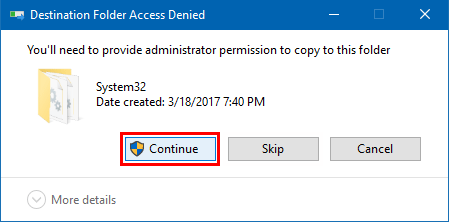
Step 2: Then move it into your C:\Windows\System32 folder. If prompted to provide administrator permissions, click on Continue to proceed.


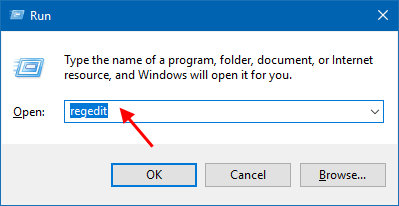
Step 3: Open Registry Editor.(run regedit)


Step 4: In registry editor, go to the following path:

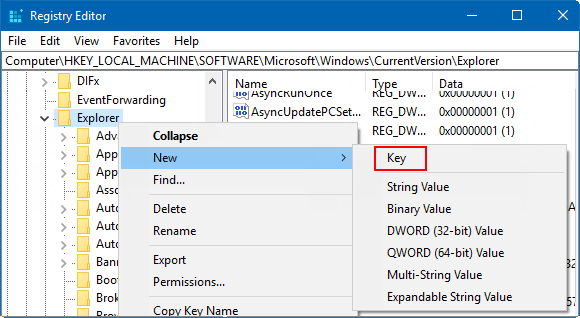
HKEY_LOCAL_MACHINE\SOFTWARE\Microsoft\Windows\ CurrentVersion\Explorer

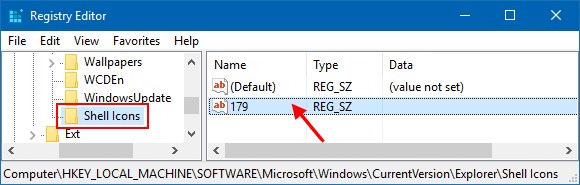
Step 5: Create a new subkey named Shell Icons.

Right-click on Explorer, select New > Key, then give it a name Shell Icons.


Step 6: Under the Shell Icons subkey, create a new string value and name it 179.


When done, close registry editor. Restart your PC, you'll find blue arrows icon is removed.


Way 2: Remove Blue Arrows Icon in Properties

To remove double blue arrows icon in file or folder Properties, here's how:

Step 1: Press Win + E keys to open File Explore. Go to Document directory.

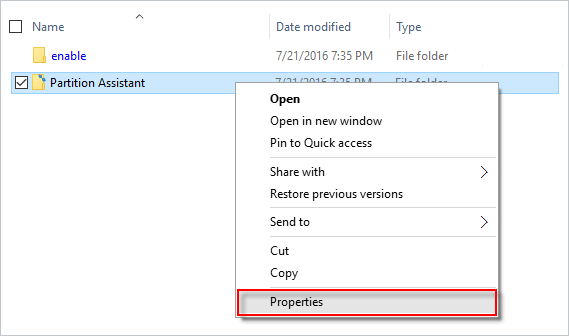
Step 2: Right-click on that folder with double blue overlaid and then select Properties.


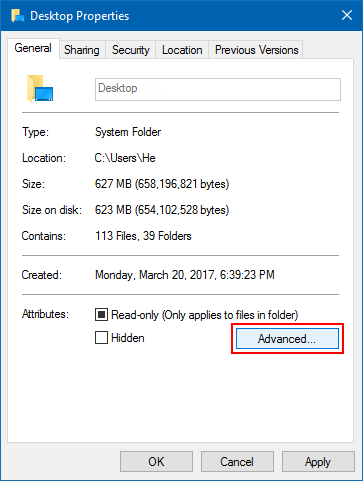
Step 3: Under the General tab, select Advanced in the bottom right corner.


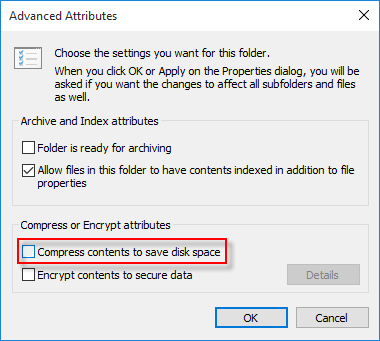
Step 4: Clear Compress contents to save disk space checkbox. Click OK


Step 5: In Properties window, then Apply.


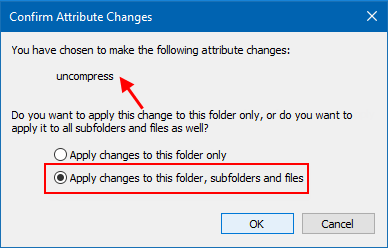
Select Apply changes to all folders and sub-folders option to confirm attribute changes.


You'll see the double blue arrow disappear. You can repeat do this action for other folders in different directories.

Saturday, 26 January 2019

Whatsapp Sticker Apps from JEZ Consult

To mark off the year 2019, decided to try and build a real app from scratch. Almost from scratch. Earlier of last year 2018, created a simple game using AppsGeyser at www.appsgeyser.com. It has built in ready made apps that you can integrate and design your own by changing the text and images. However, because I had it made in its FREE, I didn't really learn much because it was actually just a simplified wizard step-by-step app creator.

This year, I finally do some proper research and download the Android Studio, installed it and really start creating and try to learn the programming codes. GitHub has a wide variety of apps built by really smart people. And in order to take it to the next step, I decided to choose one of the still a simpler task. Re-create whatsapp stickers with the help from whatsapp. Though the app package was given, there were still some tweaks that needs correction. And getting help from professional programmers really helped me learn how the app is actually made. Below is the link of the Whatsapp sticker I made. Though its not fancy like with animation and flashy pictures, its still a success from a non-programmer like myself. I will continue to try and move on to building better apps in future, but I think some lessons still need to learn from attending a class or direct teaching from a professional.